
What is WalletConnect?
WalletConnect is the industry-standard protocol for connecting crypto wallets to decentralized applications (dApps). Unlike browser extensions that require installation on a computer, WalletConnect works directly from your phone — you approve everything through your wallet, with your private key, without relying on intermediaries. The protocol creates a secure, encrypted channel between your wallet and the dApp. No private key travels through the connection — only the approvals you explicitly authorize. Today, WalletConnect is supported by thousands of platforms: decentralized exchanges like PancakeSwap and Uniswap, lending protocols like Aave and Venus, NFT marketplaces like OpenSea, staking platforms, yield farming, perps, and much more. It is the DeFi ecosystem’s standard way of connecting mobile wallets to any on-chain application.BeeSwarm on WalletConnect
 BeeSwarm is officially listed on WalletConnect — the public directory of wallets compatible with the protocol.
This is not automatic. To appear in the directory, a wallet goes through a technical validation process conducted by the WalletConnect team. Being listed means BeeSwarm meets the protocol’s security, compatibility, and experience standards — and that any dApp user anywhere in the world can find it directly in the list of supported wallets.
In practice, this means that on any dApp that supports WalletConnect — whether on mobile or desktop — you can search for “BeeSwarm” and connect directly, without a browser extension, without installing anything extra, without depending on third-party wallets.
BeeSwarm is officially listed on WalletConnect — the public directory of wallets compatible with the protocol.
This is not automatic. To appear in the directory, a wallet goes through a technical validation process conducted by the WalletConnect team. Being listed means BeeSwarm meets the protocol’s security, compatibility, and experience standards — and that any dApp user anywhere in the world can find it directly in the list of supported wallets.
In practice, this means that on any dApp that supports WalletConnect — whether on mobile or desktop — you can search for “BeeSwarm” and connect directly, without a browser extension, without installing anything extra, without depending on third-party wallets.
🔗 View BeeSwarm on WalletConnect
How to access WalletConnect in BeeSwarm
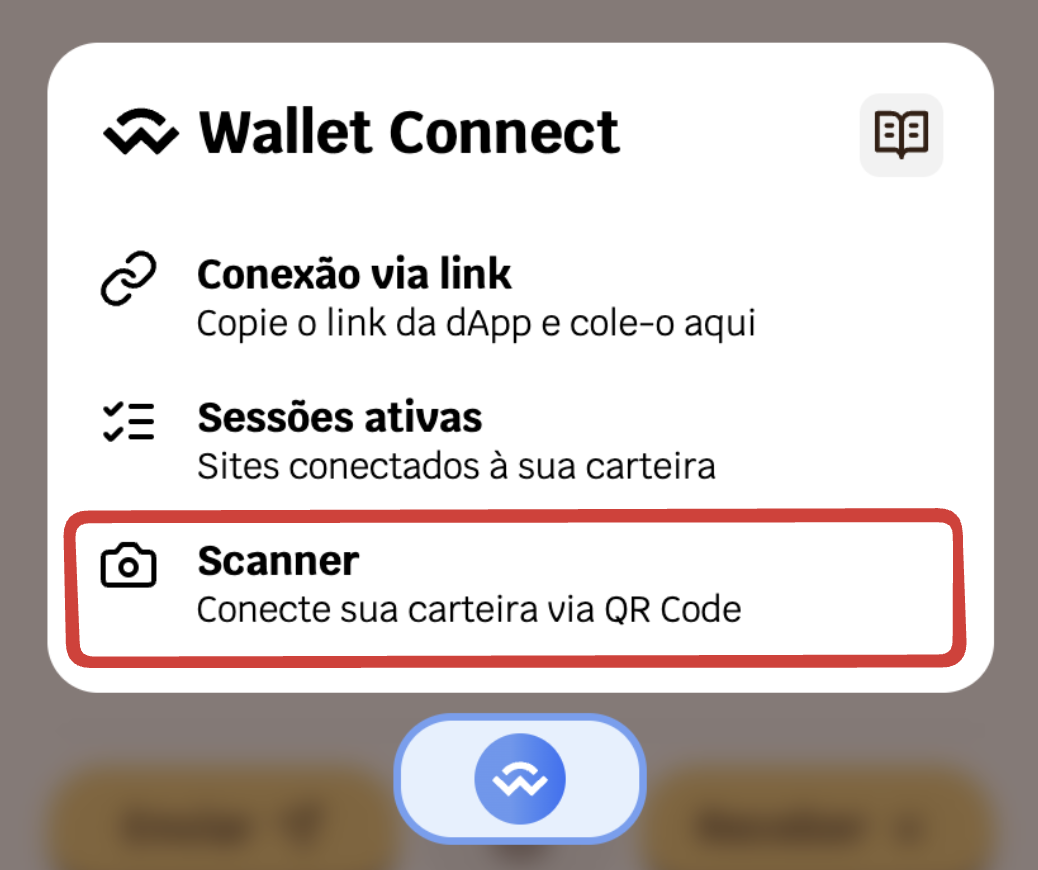
On the wallet screen, tap the layers icon (between the Send and Receive buttons) to open the Tools menu. Then tap Wallet Connect.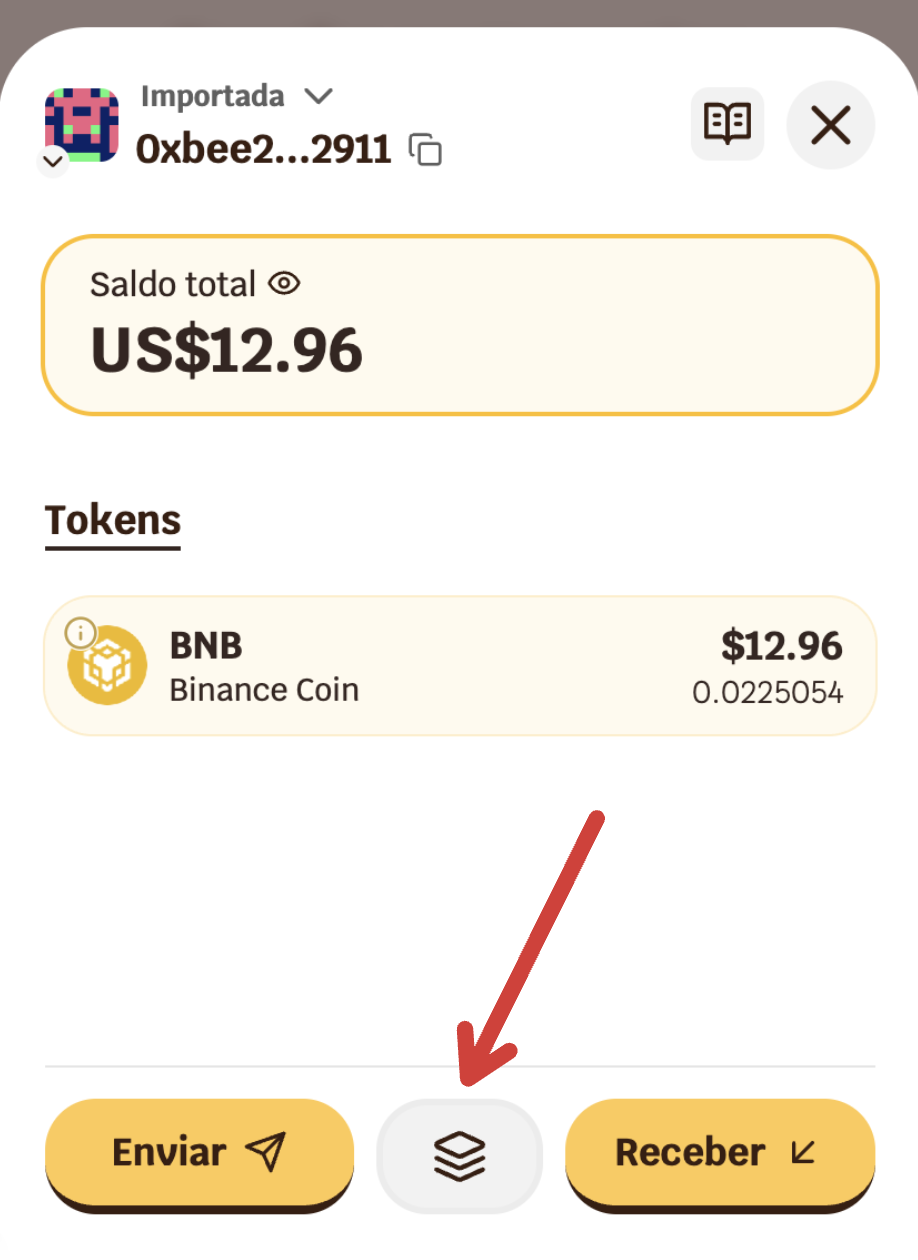 The module offers three options: Connection via link, Active sessions, and Scanner.
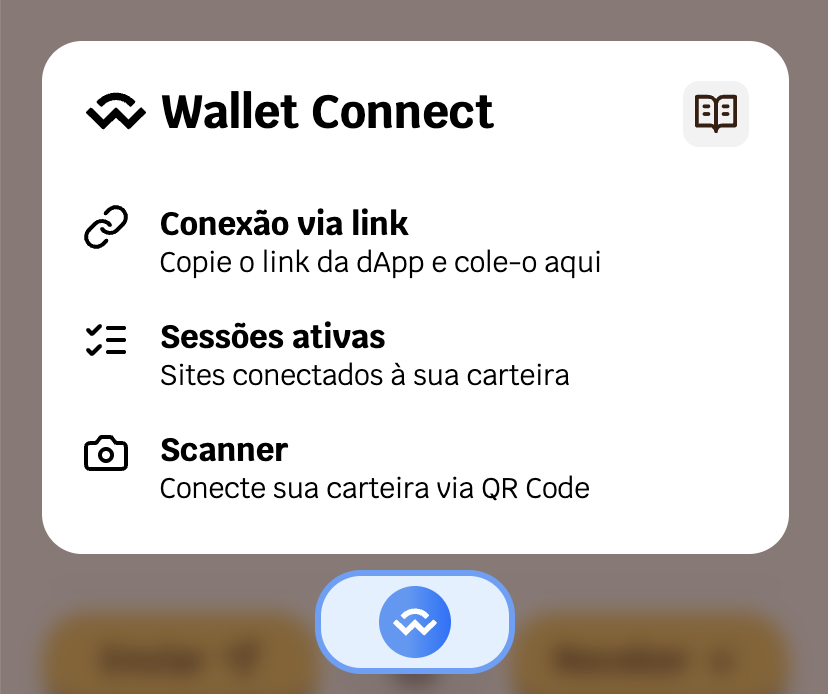
Connection via link (URI)
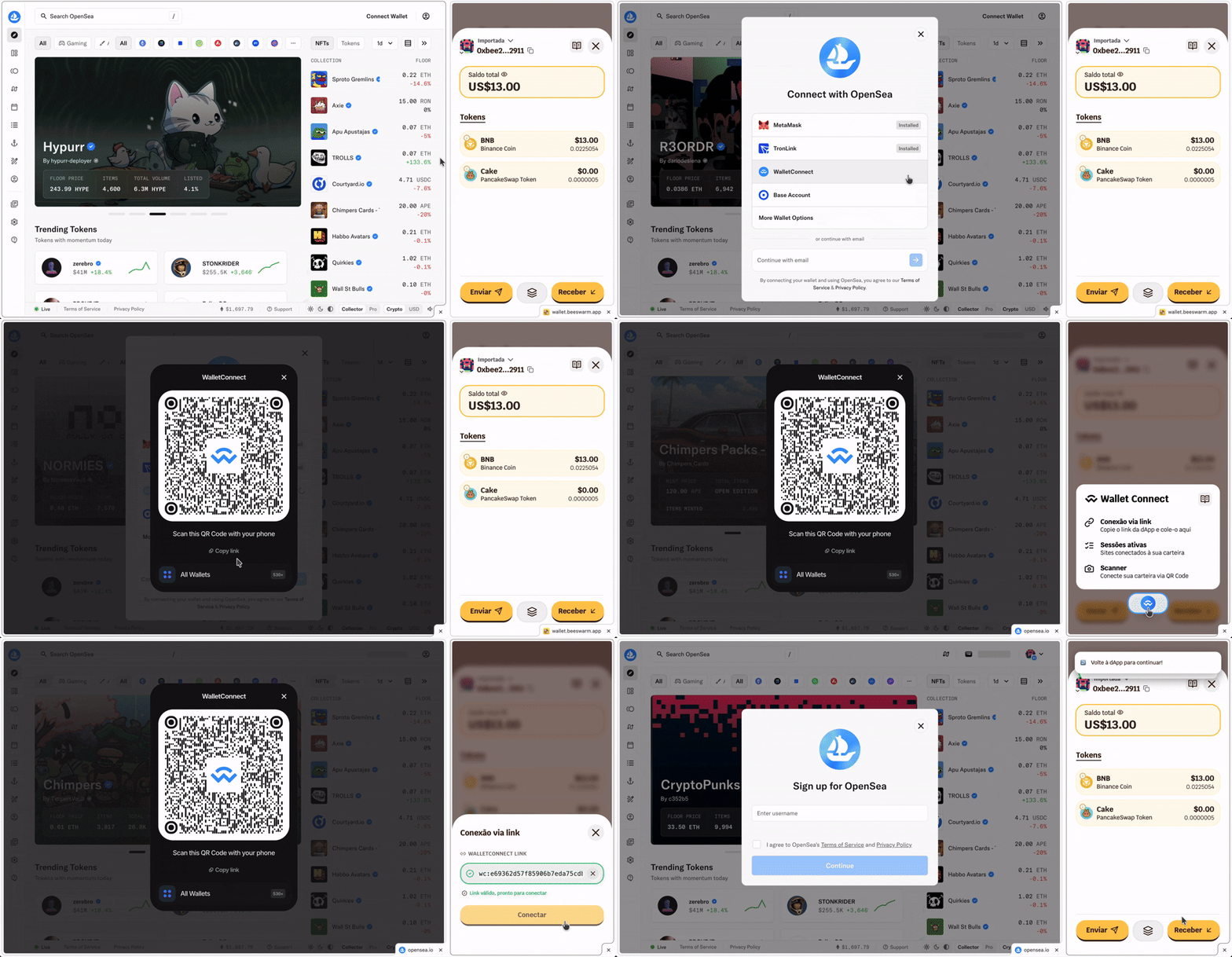
Use this when the dApp and BeeSwarm are on the same device — no scanning needed.💡 Some dApps display the URI link automatically below the QR code. Others require you to click a button to copy it. The behavior varies by platform.How to connect:
- Open the dApp you want to connect to BeeSwarm in your browser
- Look for the “Connect Wallet” button — usually in the top right corner of the page
- If the dApp supports WalletConnect, it will appear as one of the wallet options; select it
- A QR code will be displayed on the screen
- Below the QR code, tap “Copy link” (or similar) to copy the generated URI link
- Switch to BeeSwarm and tap Connection via link
- Paste the link into the field — it will turn green if valid, red if invalid
- Tap Connect
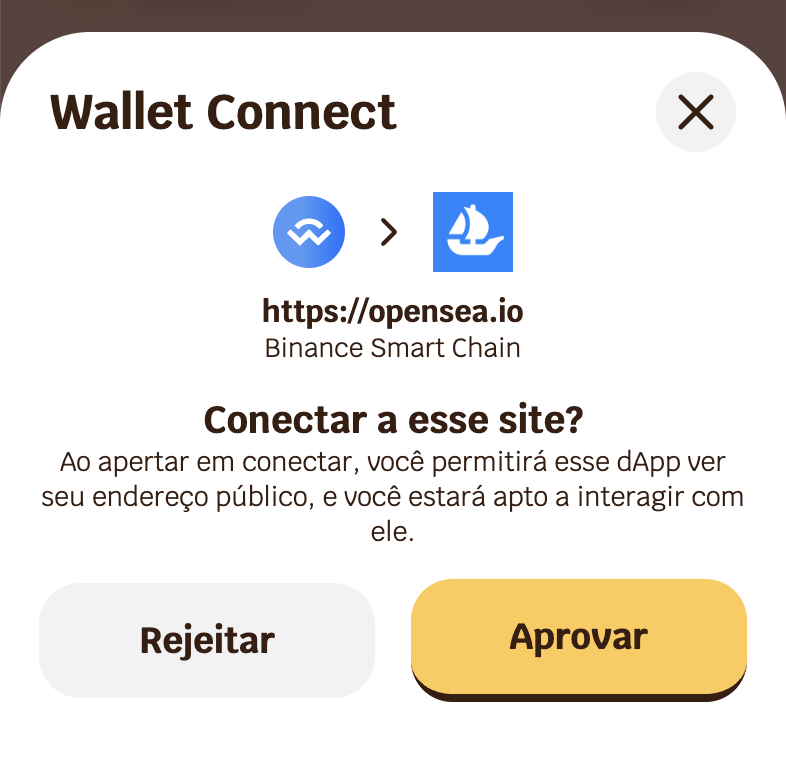
- A connection popup will appear with two options:
- Reject — the connection is cancelled; go back to the dApp and generate a new URI link
- Approve — connection established successfully
- After approving, go back to the browser with the dApp — the connection is now active
On mobile
Since BeeSwarm is installed as a standalone app, the dApp will be accessed in a separate browser (Safari, Chrome, or another). Switch between the two apps as described in the steps above.
On desktop
The flow is identical. On desktop, you can use the browser’s split screen to keep the dApp and BeeSwarm side by side — making it easier to switch between the two steps without changing tabs.When the dApp requires a signature after connecting
Some platforms require two consecutive steps: connect and then sign an entry message. In those cases:- Paste the URI link and tap Connect
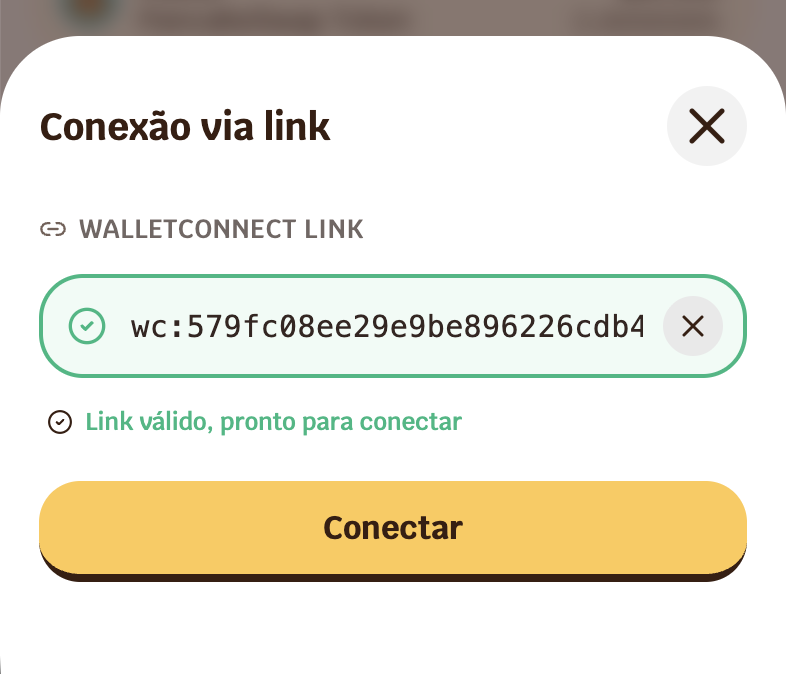
- Approve the connection in BeeSwarm
- A notice “Go back to the dApp to continue” will be displayed
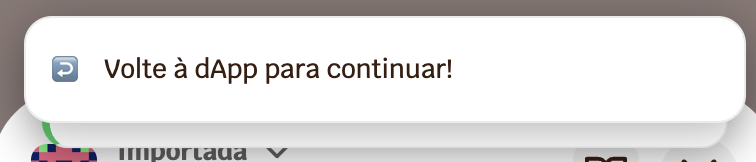
- Go back to the dApp — it will be waiting for a signature
- Switch back to BeeSwarm — a signature popup will be waiting
- Sign with your wallet
- Return to the dApp to complete the connection flow
💡 Not all dApps require a signature. But when they do, you will need to switch between BeeSwarm and the browser twice: once to approve the connection and once to sign.
Connecting via Scanner (QR Code)
Use this when you are accessing the dApp from another device — such as a computer.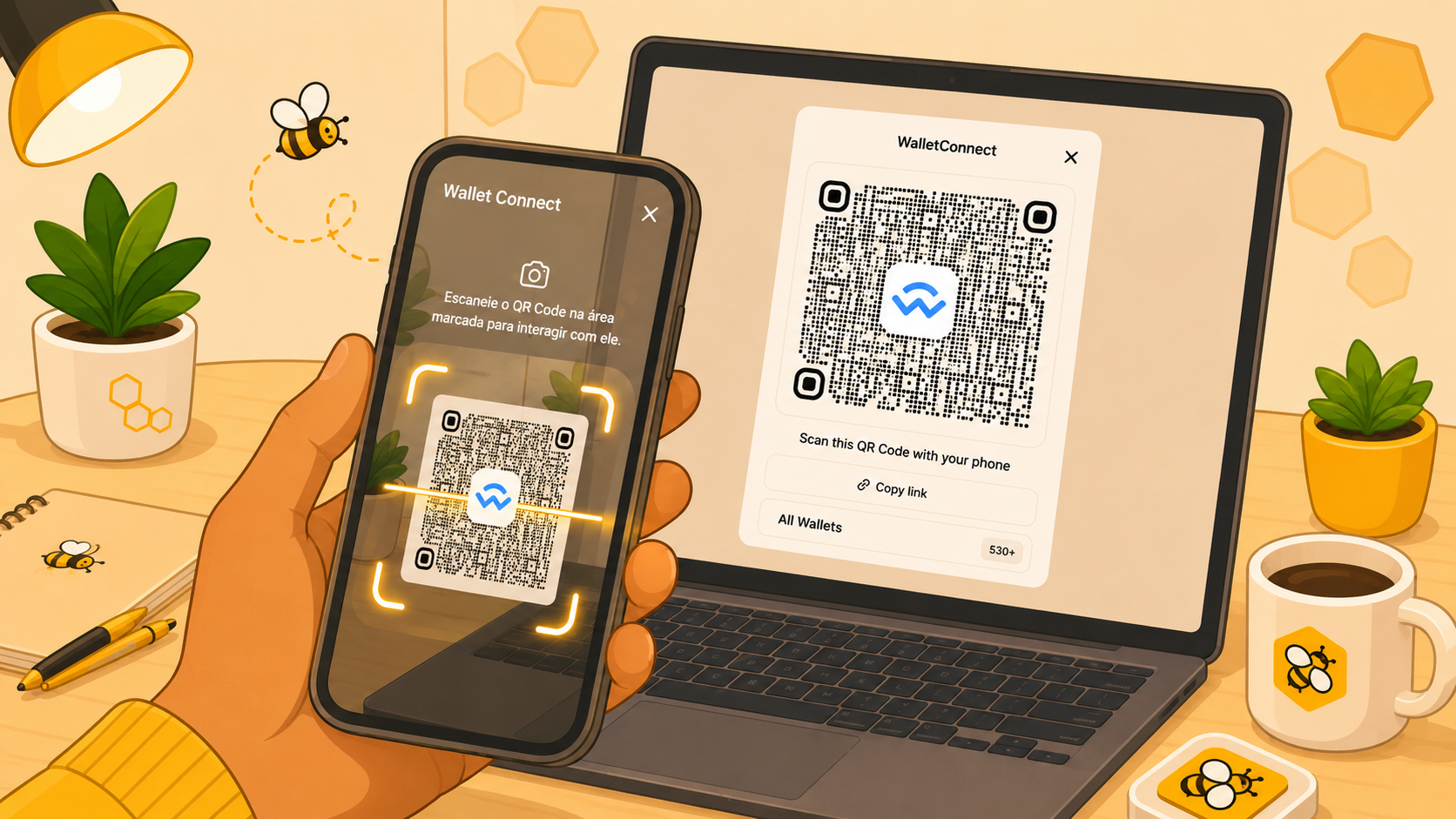 How to do it:
- Open the dApp on your computer (e.g. OpenSea, Uniswap, etc.)
- Click “Connect Wallet” and select WalletConnect
- The dApp will display a QR code on the screen
- In BeeSwarm, tap Scanner and point the camera at the QR code
- Review the connection request and confirm
Active sessions
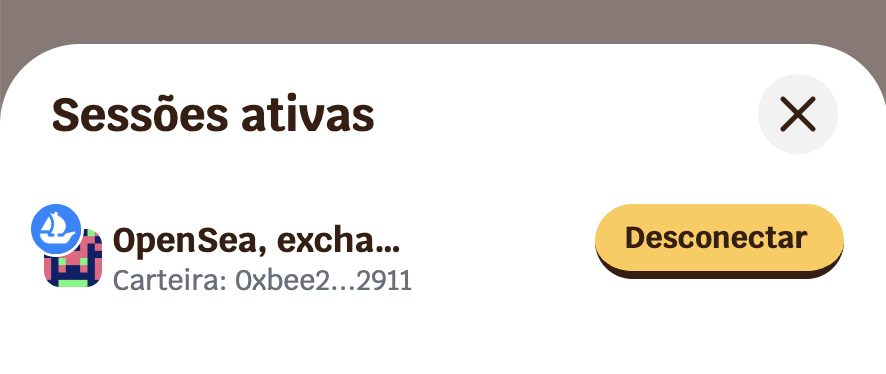
After connecting, the session remains open until you or the dApp close it. In Active sessions, you can see all open connections — with the dApp name and network used.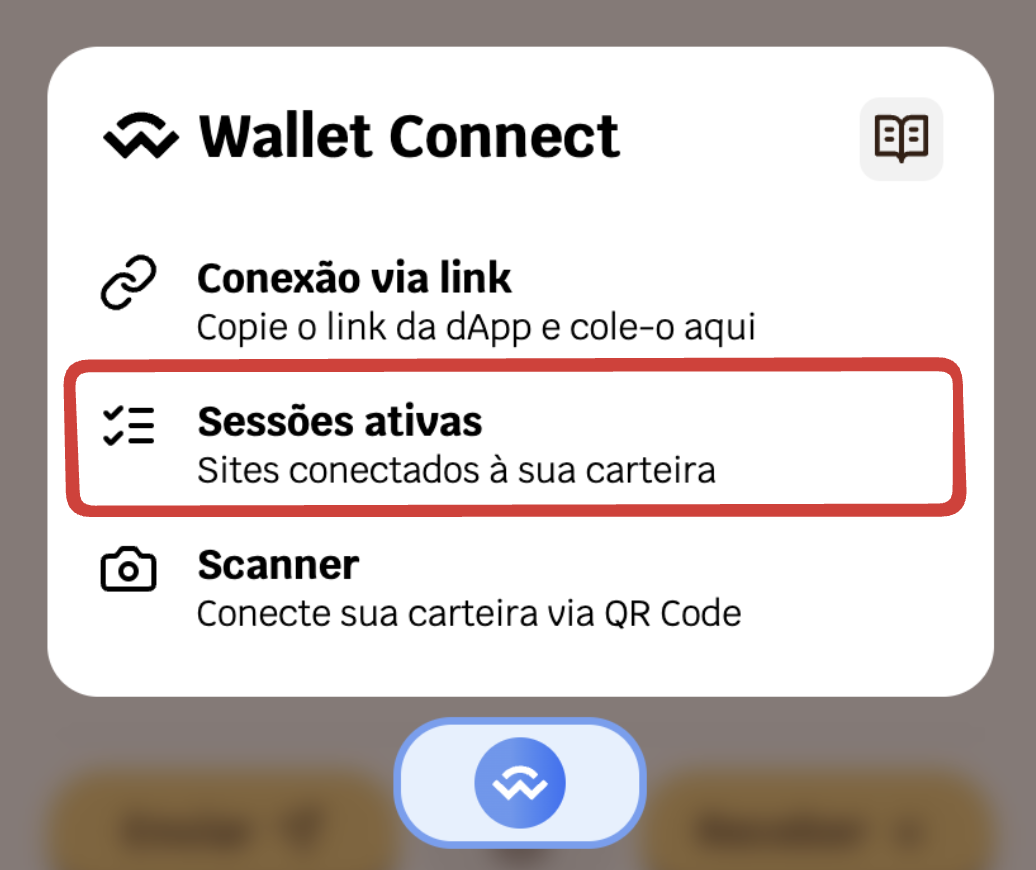 To disconnect:
- In BeeSwarm: tap the desired session and select Disconnect
- From the dApp itself: most offer a disconnect button in the account interface
💡 It is good practice to close sessions that are no longer in use, especially for dApps you access occasionally.
Approving dApp actions
Every request sent by the dApp — signing messages, confirming transactions, authorizing token spending — appears in BeeSwarm for you to review before approving or rejecting. No action is executed automatically. You have full control over what you authorize.⚠️ Always read what is being requested before approving. Signature requests from unknown dApps may be phishing attempts.