> ## Documentation Index
> Fetch the complete documentation index at: https://docs.beeswarm.app/llms.txt
> Use this file to discover all available pages before exploring further.
# Sending Messages
> How to start a conversation and send messages in BeeChat.
To send a message in BeeChat, you need your contact's wallet address. There is no search by name, phone number, or email — identity in BeeChat is the wallet address.
***
## Starting a New Conversation
On the main BeeChat screen, locate the address field and paste the wallet address of the person you want to talk to. The address will be validated automatically.
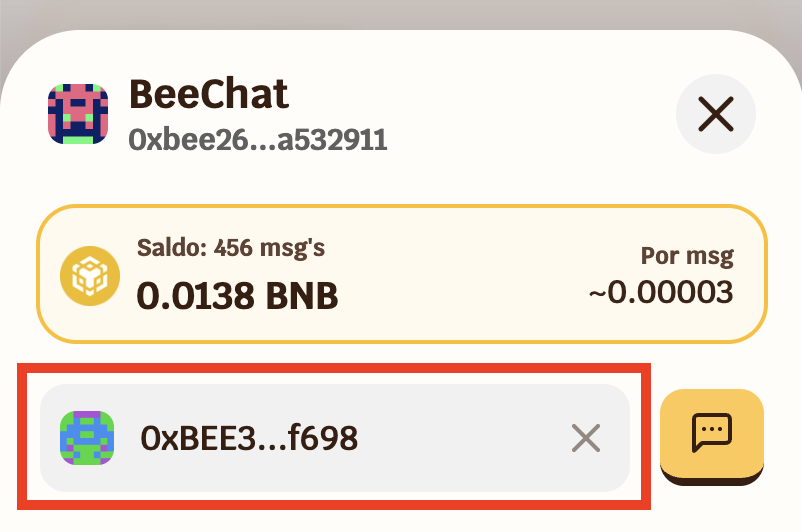 Wallet addresses always start with `0x` and have 42 characters. Make sure to copy the complete and correct address — once sent, the message cannot be deleted.
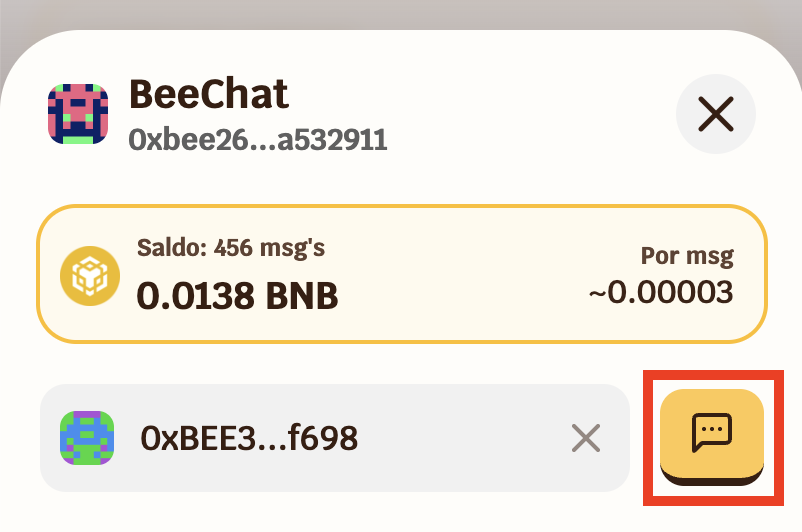
After pasting the address, tap the chat icon next to the field to open the conversation.
Wallet addresses always start with `0x` and have 42 characters. Make sure to copy the complete and correct address — once sent, the message cannot be deleted.
After pasting the address, tap the chat icon next to the field to open the conversation.
 Before sending, BeeChat may display important notices:
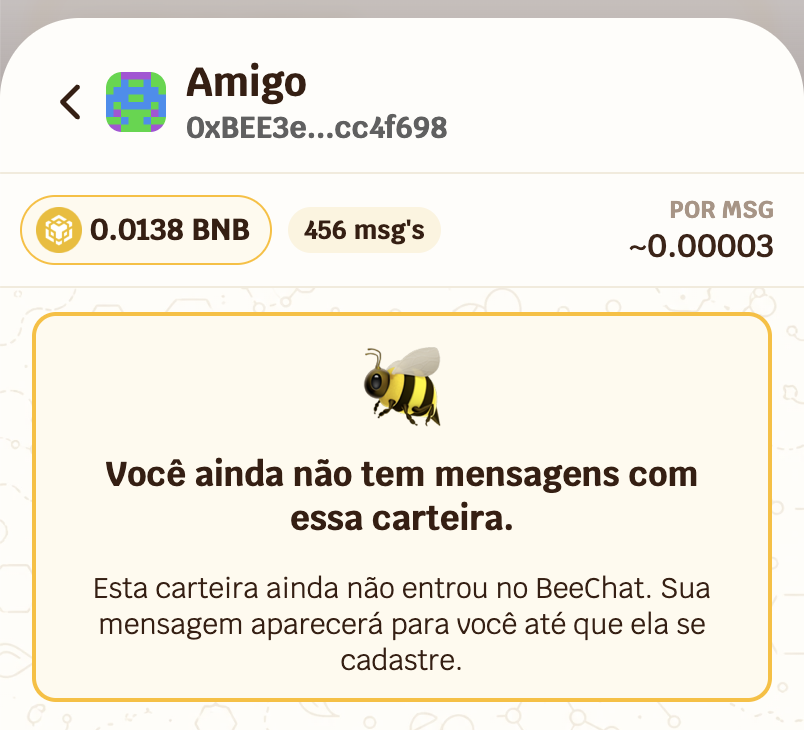
**First message** — if you have not yet exchanged messages with this address, the conversation will appear empty with a welcome message.
Before sending, BeeChat may display important notices:
**First message** — if you have not yet exchanged messages with this address, the conversation will appear empty with a welcome message.
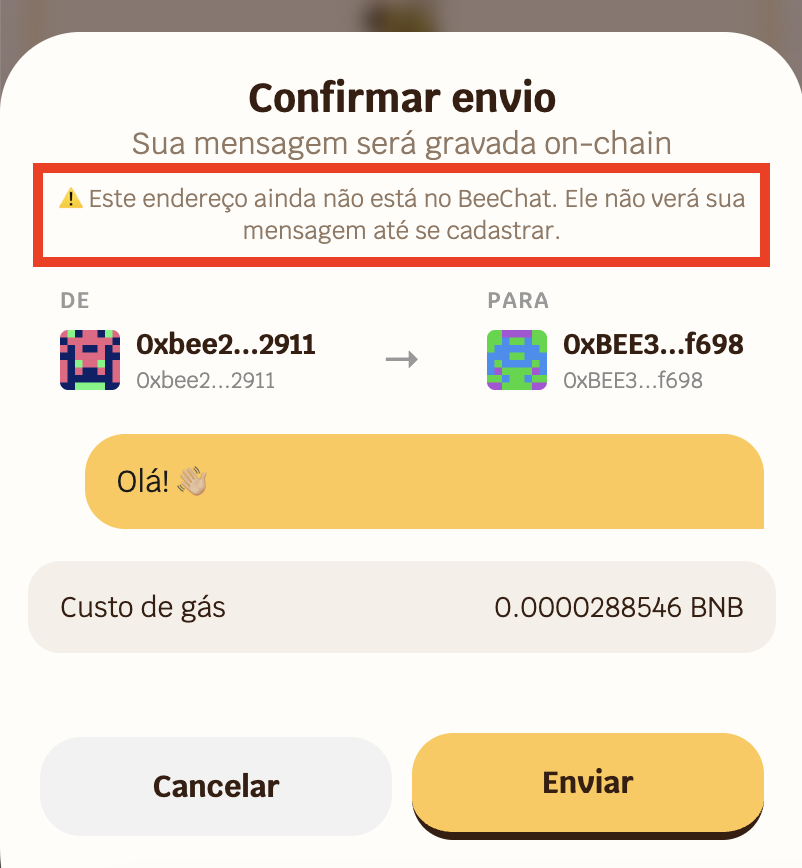
 **Unregistered contact** — if the address has not yet registered in BeeChat, you will see a warning. You can send the message, but they will not be able to read it until they register. And even after registering, previous messages will remain unreadable for them.
 ***
## Sending a Message
With the conversation open, type your message in the text field at the bottom of the screen. The field expands automatically as you type.
***
## Sending a Message
With the conversation open, type your message in the text field at the bottom of the screen. The field expands automatically as you type.
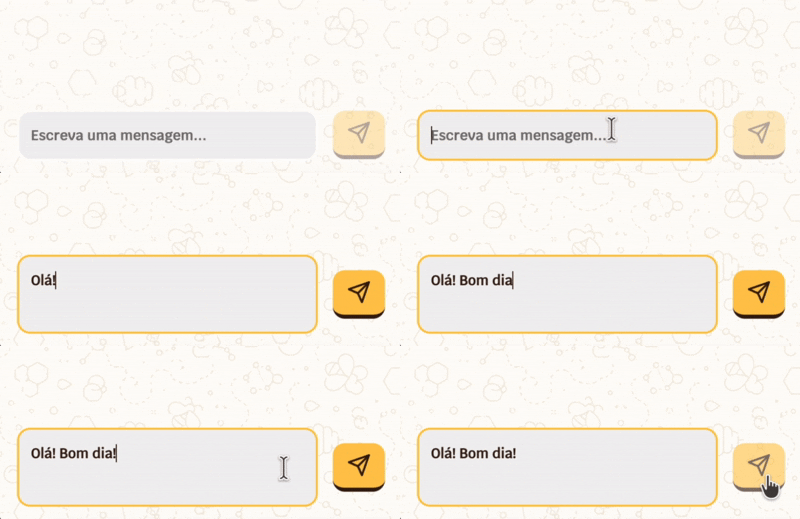 BeeChat only supports text content.
When you tap send or press Enter, a confirmation screen will appear with:
* A -> Origin address (you) and destination (your contact)
* B -> Message preview
* C -> Estimated cost in BNB
BeeChat only supports text content.
When you tap send or press Enter, a confirmation screen will appear with:
* A -> Origin address (you) and destination (your contact)
* B -> Message preview
* C -> Estimated cost in BNB
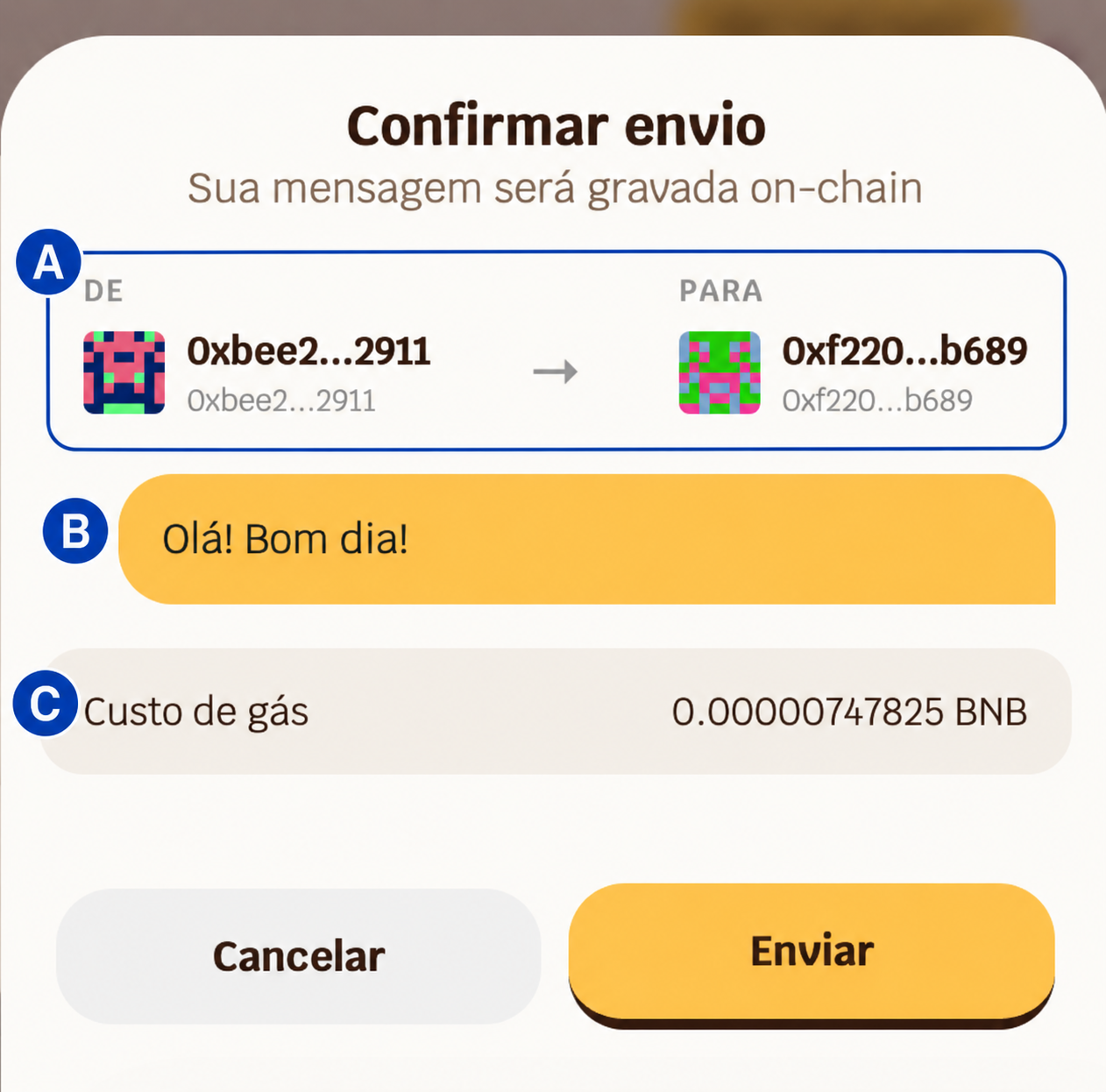 Review the information and tap **Send** to proceed.
To sign the transaction, you will need to confirm with your password or biometrics.
Review the information and tap **Send** to proceed.
To sign the transaction, you will need to confirm with your password or biometrics.
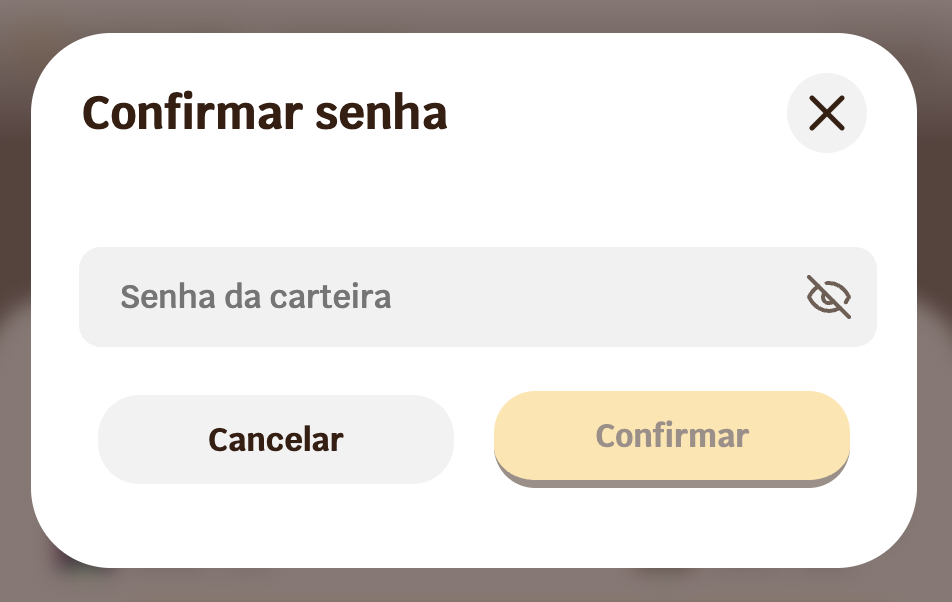 With biometrics enabled, this step is quick — just use Face ID or fingerprint. [See how to enable it](/en/biometrics).
After authenticating, your message will appear immediately in the conversation with a ⏰ icon, indicating it is being propagated on the blockchain network.
With biometrics enabled, this step is quick — just use Face ID or fingerprint. [See how to enable it](/en/biometrics).
After authenticating, your message will appear immediately in the conversation with a ⏰ icon, indicating it is being propagated on the blockchain network.
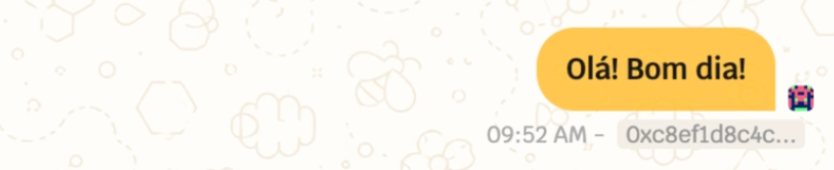
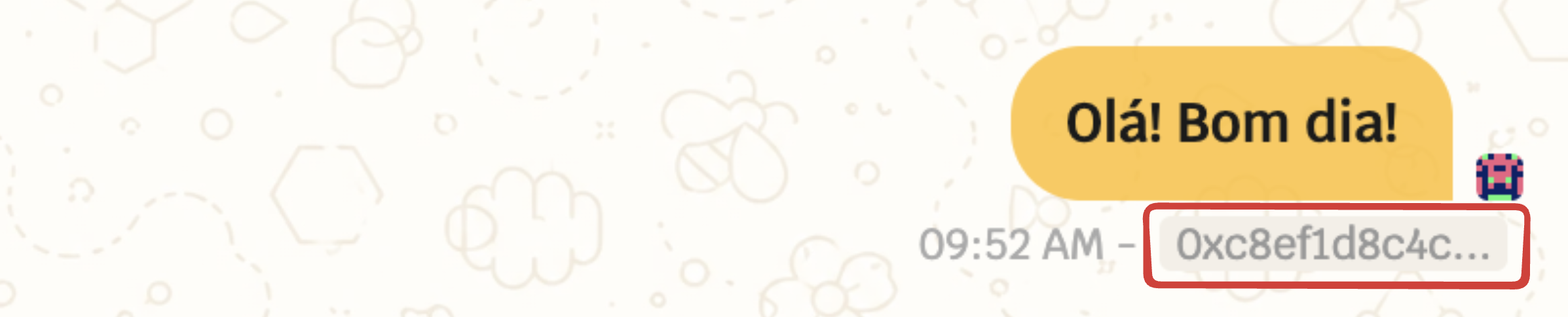
 Once the transaction is confirmed by BNB Smart Chain — usually within a few seconds — the icon is replaced by the final message with the time and transaction hash.
 ***
## Message Information
Below each sent or received message, you will find:
**Time** — displays the time of sending. Tap to expand and see the full date and time, including time zone.
***
## Message Information
Below each sent or received message, you will find:
**Time** — displays the time of sending. Tap to expand and see the full date and time, including time zone.
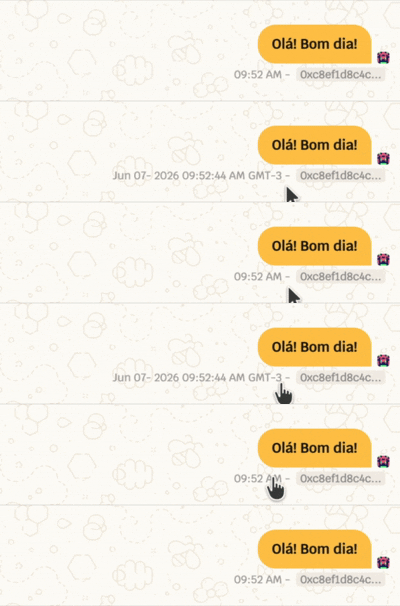 **Transaction hash** — unique identifier of the message on the blockchain. Tap to open in BscScan and verify the on-chain record directly in the browser.
 ***
## Your Conversations
On the main BeeChat screen, you will find the list of all wallets you have exchanged messages with, ordered by the most recent interaction.
***
## Your Conversations
On the main BeeChat screen, you will find the list of all wallets you have exchanged messages with, ordered by the most recent interaction.
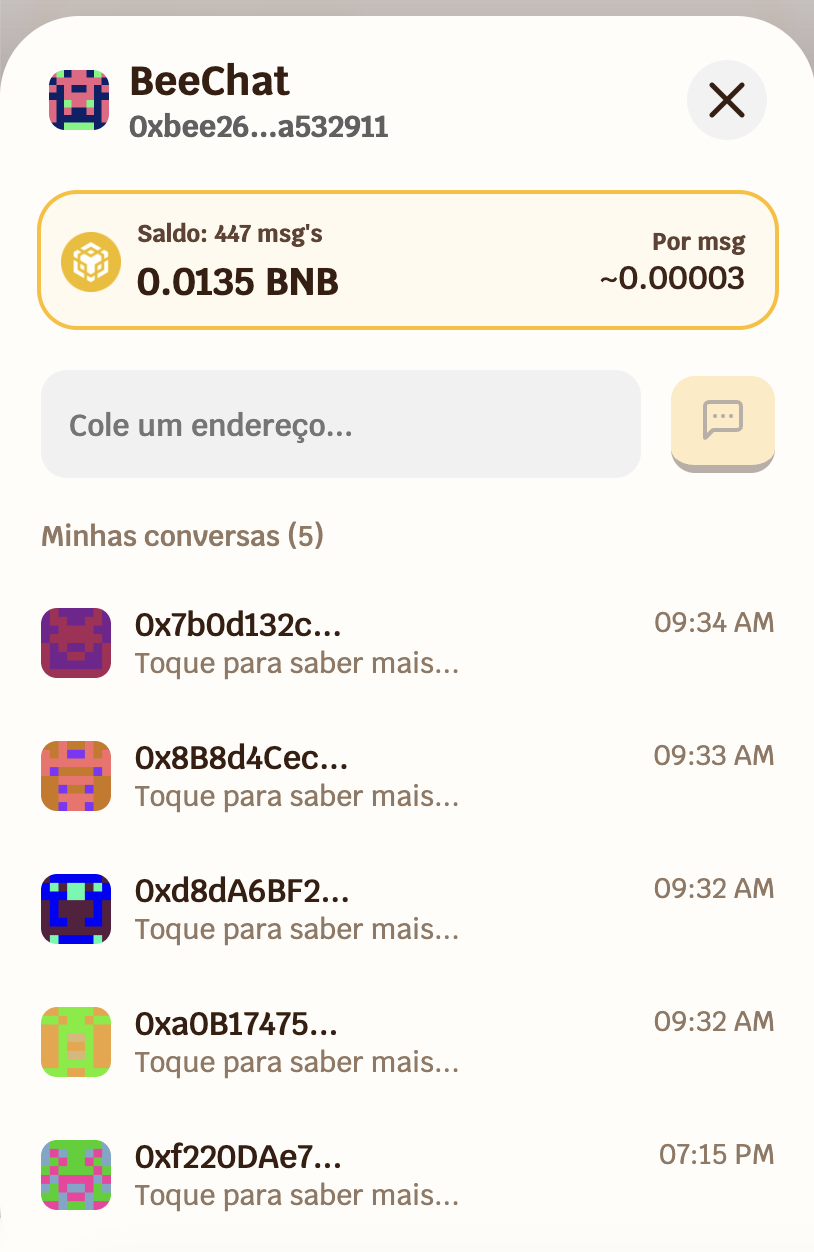 Tap any conversation to open it and see the full message history.
***
## Balance and Message Estimate
At the top of BeeChat, you will always find:
* A -> How many messages you can still send with your current balance (estimate)
* B -> Your current BNB balance
* C -> Estimated average cost per message
Tap any conversation to open it and see the full message history.
***
## Balance and Message Estimate
At the top of BeeChat, you will always find:
* A -> How many messages you can still send with your current balance (estimate)
* B -> Your current BNB balance
* C -> Estimated average cost per message
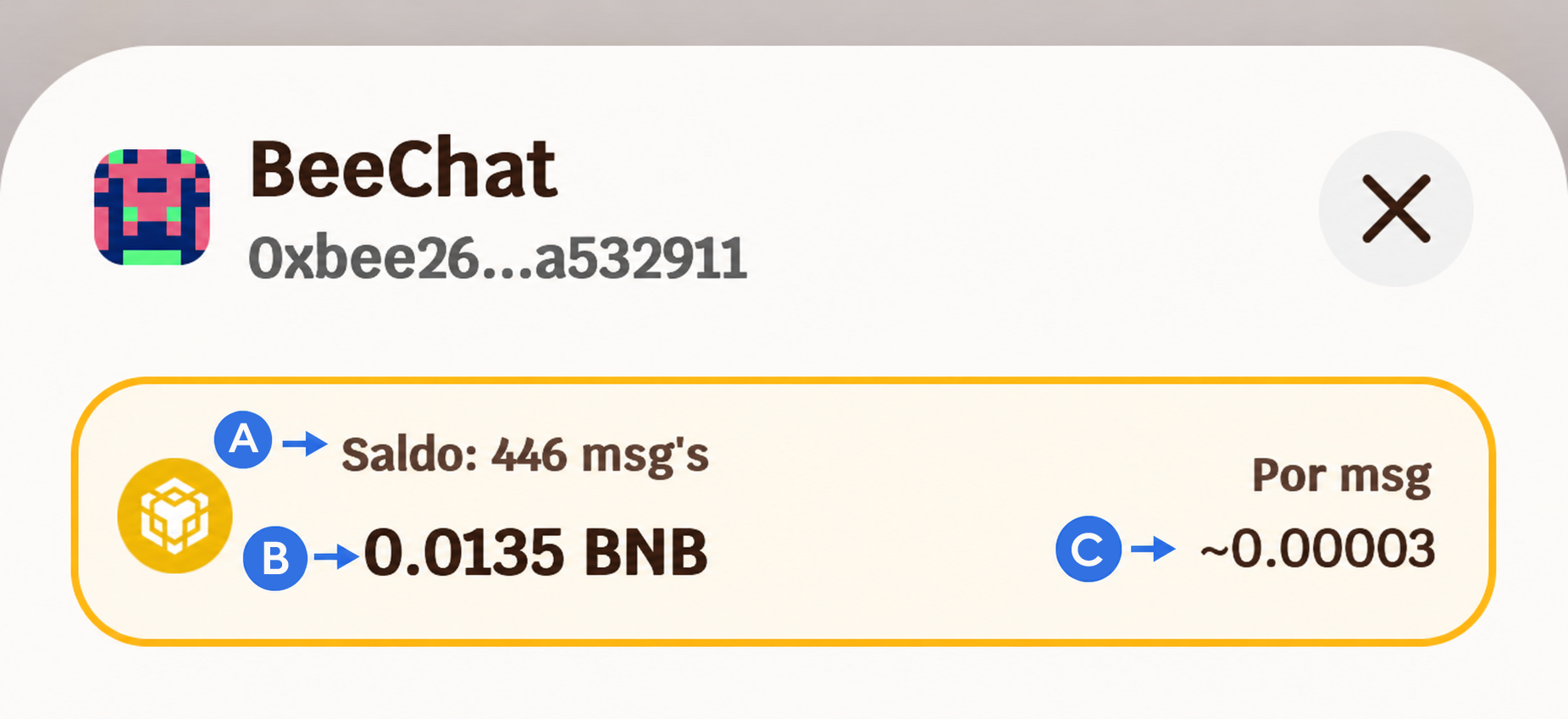 The estimate is calculated in real time based on the current gas price on BNB Smart Chain. It may vary depending on network congestion.
[→ Understand how your privacy is protected](/en/beechat/privacy-and-security)
The estimate is calculated in real time based on the current gas price on BNB Smart Chain. It may vary depending on network congestion.
[→ Understand how your privacy is protected](/en/beechat/privacy-and-security)